Quick answer
Marriage Biodata Photo Guide: Choose, Crop, and Share the Right Photo
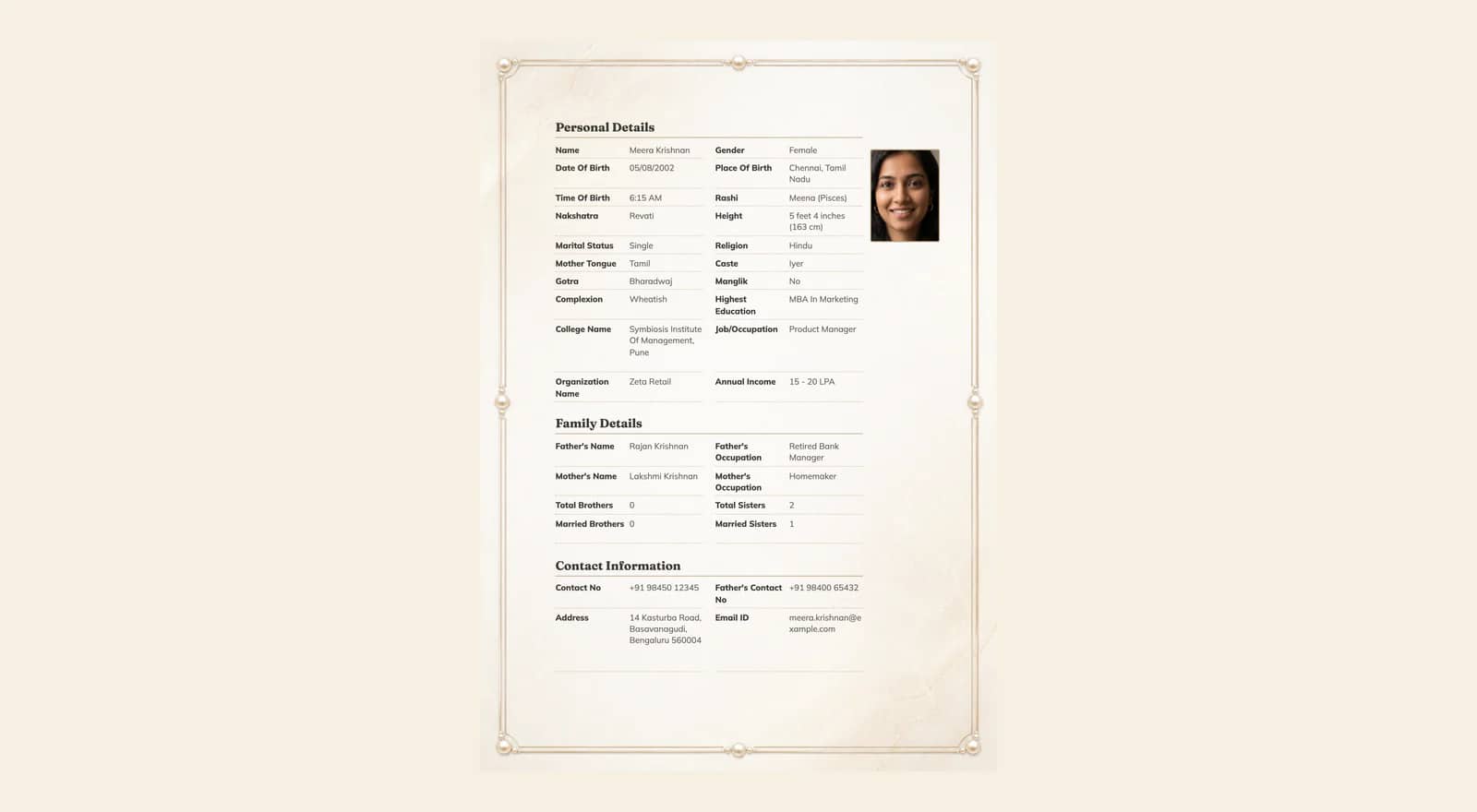
A good marriage biodata photo is recent, solo, and recognisable: take it in plain light against a simple background, keep the picture honest with no heavy filters, and crop it head and shoulders in the 3:4 portrait frame the maker provides. Check the preview on your phone before sharing, then send the finished file instead of the original photo.
Choose a recent photo you consent to share
The photo on a marriage biodata travels further than you expect. A parent forwards it to an aunt, an uncle sends it to a family friend, and at some point it reaches people you have never met. Before anything else, pick a picture from the last year or so that still looks like you today, and be comfortable with it being forwarded without you in the room. If nothing recent feels right, take a fresh one now: stand near a window and shoot it on the spot.
A recent photo matters because the first meeting should not come with a surprise. If your hair, glasses, beard, or general look have changed since the picture was taken, take a new one. A stale photo is usually the first thing people compare against your face when you meet.
- Taken within the last year, so it matches how you look now, or shot fresh today.
- Solo: only you in the frame, no group shots or cropped-out arms.
- Something you are happy to have forwarded by relatives you may not know.
- Straight from the camera roll, not a screenshot of a photo.
Take a clear portrait without altering identity
You do not need a studio session. A phone photo taken near a window with a plain wall behind you is enough for almost every biodata. Stand facing the light rather than with the window at your back, hold the phone at eye level, and ask someone else to take it if you can; a photo taken by another person distorts the face less than a stretched-out selfie.
The goal is a photo people recognise. Light edits for brightness are fine, but skip filters that smooth skin, reshape the face, or change your complexion. If an edit makes you look like someone else, the other family notices it at the first meeting. Wear what you would wear to meet this family, keep the background simple, and use your everyday expression rather than a stiff ID-card stare.
- Face a window or open shade so the light falls on your face, not behind it.
- Use a plain wall, curtain, or open space; keep furniture, crowds, and clotheslines out of frame.
- Skip sunglasses and caps; regular glasses you wear daily are fine.
- Avoid heavy filters and face reshaping; keep skin and features as they are.
Crop and position it in the maker
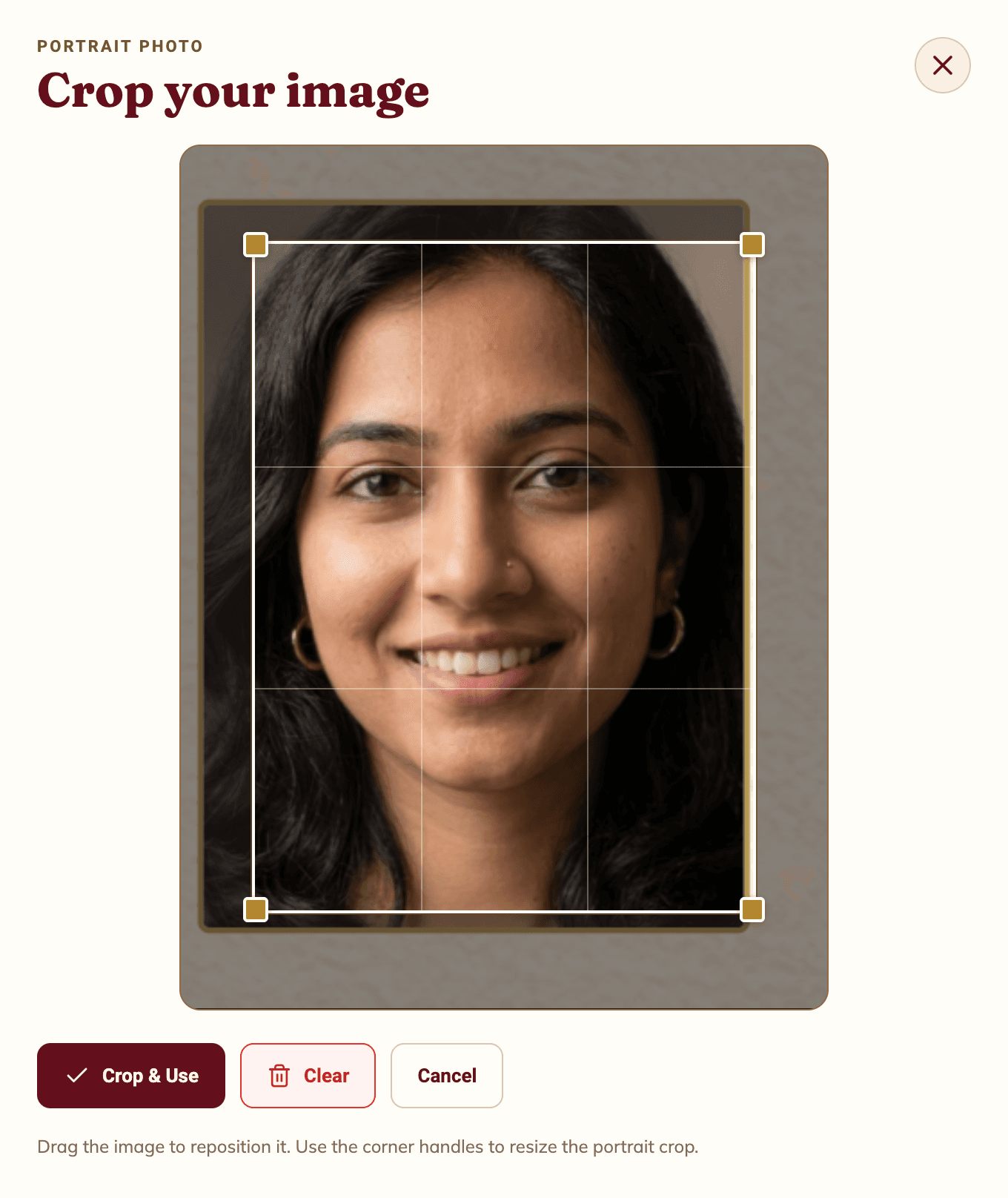
Once your details are in the form, scroll to the Image section and choose Upload Image. The maker accepts JPEG, PNG, WebP, HEIC, and HEIF files up to 25 MB, and the picture never leaves your browser. After you pick a file, a crop dialog opens with a fixed 3:4 portrait frame, the same shape the photo box uses on the templates.
Drag the image to reposition it and use the corner handles to resize within the frame. Keep the whole face inside the frame with a little space above the hair, and cut the background rather than the chin. When the framing looks right, choose Crop & Use. The photo appears in the Image section with options to replace or remove it, and the preview updates immediately, so you can reopen the crop whenever the placement looks wrong.
- Open the Image section of the form and choose Upload Image, then pick your photo.
- Drag to reposition and pull the corner handles until the face sits comfortably inside the 3:4 frame.
- Choose Crop & Use, then look at the preview to confirm the placement.
- If the framing looks off, choose Replace Image and adjust it; nothing is sent to a server.
Check phone and print previews
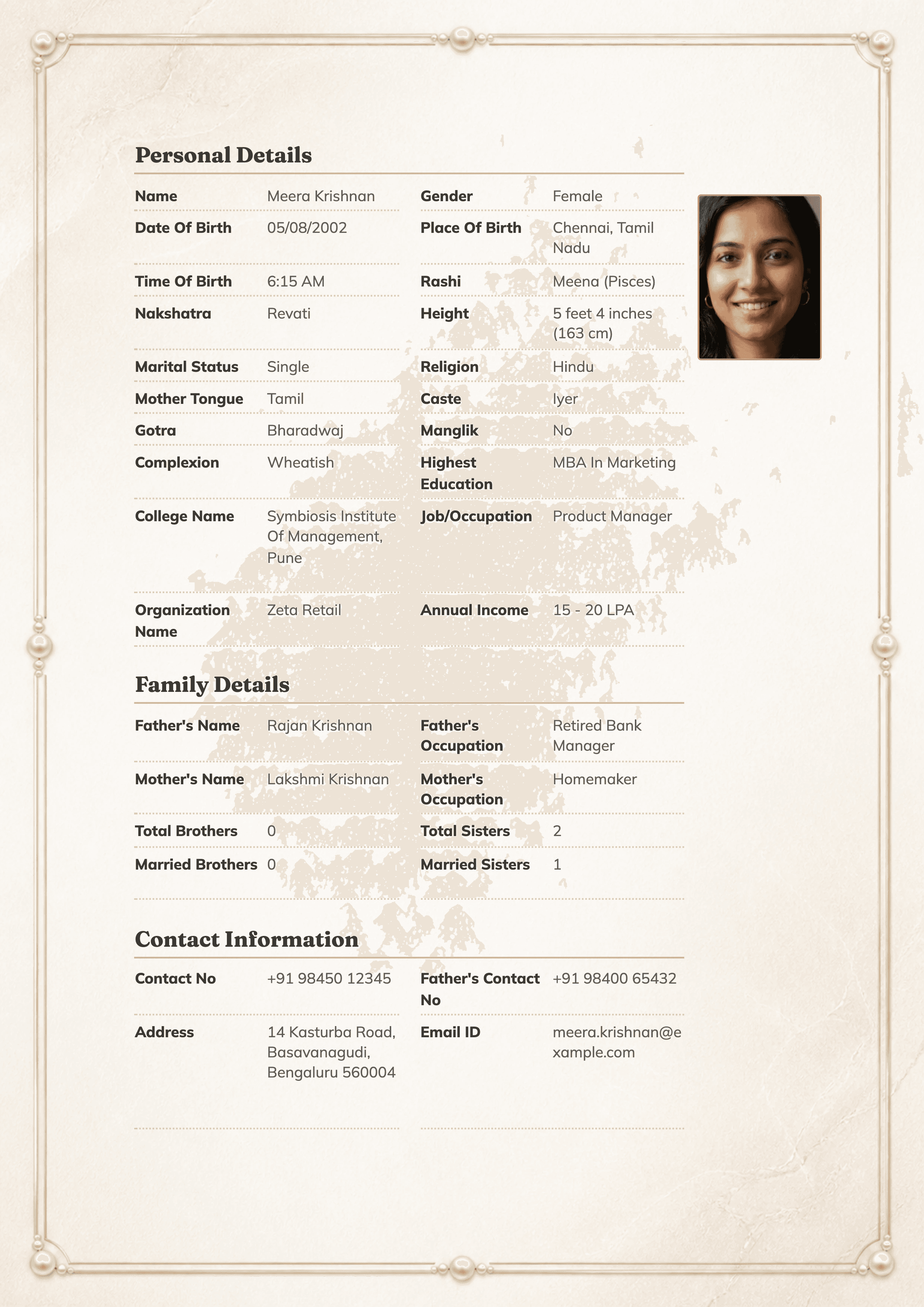
The preview pane next to the form shows exactly what the finished page will carry, including where the photo sits. Read it the way a relative will: at arm length, on the device you actually use. A portrait that looks sharp on a laptop can turn soft once it is scaled into the photo box, and a face that fills the crop can look tiny on the finished page.
Before you download, zoom the preview to 100 percent and check three things: the face is sharp, the frame does not clip hair or chin, and the photo sits where you expected relative to the name. If you plan to print, download the PDF and open it once on the same phone, because the printed page and the WhatsApp preview come from this one file.
- Look at the live preview beside the form and confirm the photo sits where you expected.
- Zoom to 100 percent and check sharpness, framing, and the gap above the head.
- Download the file and open it once on your phone before you forward anything.
The 30-second preview check
- Sharpness
- The face is clear at 100 percent zoom, not a soft upscale.
- Framing
- Hair, chin, and shoulders are all inside the frame with headroom above.
- Placement
- The photo sits beside the name and does not collide with any text.
- Device
- The downloaded file has been opened once on the phone you will share from.
Share the image safely
Send the finished biodata file, not the original photograph. The exported PDF or image is a formatted copy made for sharing, while your original stays on your device where you can reuse or replace it. On WhatsApp, send the biodata as a document so the file is not recompressed into a blurry thumbnail before it arrives.
A photo, once forwarded, is out of your control. Share the biodata with people you trust, and remember that a family friend may pass it on to someone neither family has met. If your family prefers to introduce themselves before the photo circulates, start without the photo and add it when everyone is comfortable. Keep the editable copy within the family, and when the details change, update the photo along with them so nobody sees a different person in two versions of the page.
- Forward the downloaded biodata file, never the original photo from your gallery.
- Send documents on WhatsApp so the file arrives without extra compression.
- Share with known contacts first, and agree in the family who may forward it further.
- Update the photo whenever your appearance or details change, so copies stay consistent.
Research trail
- Public matrimonial photo guidance: recent, solo, clearly lit portraits
- Observed behaviour of the Biodata for Marriage maker: crop, preview, and export
- Family discussions about forwarding biodatas in WhatsApp groups
- WhatsApp: send a file as a document so it arrives without recompression
Frequently asked questions
What makes a good photo for a marriage biodata?
A recent, solo portrait you are happy to see forwarded. Take it in plain light against a simple background, keep your skin and features as they are, and crop head and shoulders into the 3:4 frame the maker provides.
What photo size does a marriage biodata use?
The maker crops to a fixed 3:4 portrait frame, the same shape the photo box uses on every template. Upload a JPEG, PNG, WebP, HEIC, or HEIF file up to 25 MB and reposition it inside that frame before you export.
Should I use a selfie or ask someone else to take the photo?
Ask someone else if you can. A picture taken by another person distorts the face less than a stretched-out selfie, and standing near a window with the light falling on your face is enough for almost every biodata.
Can I leave the photograph out of the biodata?
Yes. Some families and communities prefer a biodata without a photograph, and every template here reads well without one. If your family is unsure, send the first round without a photo and add it later when everyone is comfortable.
How do I send the photo without losing quality?
Send the finished biodata file rather than the original from your gallery. On WhatsApp, forward it as a document so the app does not recompress it into a blurry thumbnail, and share it with known contacts first.
Our editorial methodology
Ahsan Usman checks each guide with the current Biodata Maker, published templates, and any sources listed in the article. Before changing the review date, he confirms every example uses fictional details, verifies file-format instructions, and tests the relevant links.